Talk to Your Obsidian Notes from Your Phone — Claude Code Mobile Setup
Hey everyone! Today's video is a little different. I've been exploring a simple way to talk to my Obsidian notes from my phone while walking. Something I actually use every day.

If you like videos, here’s the walkthrough. If you prefer reading, this post is fully self‑contained—everything you need is below.
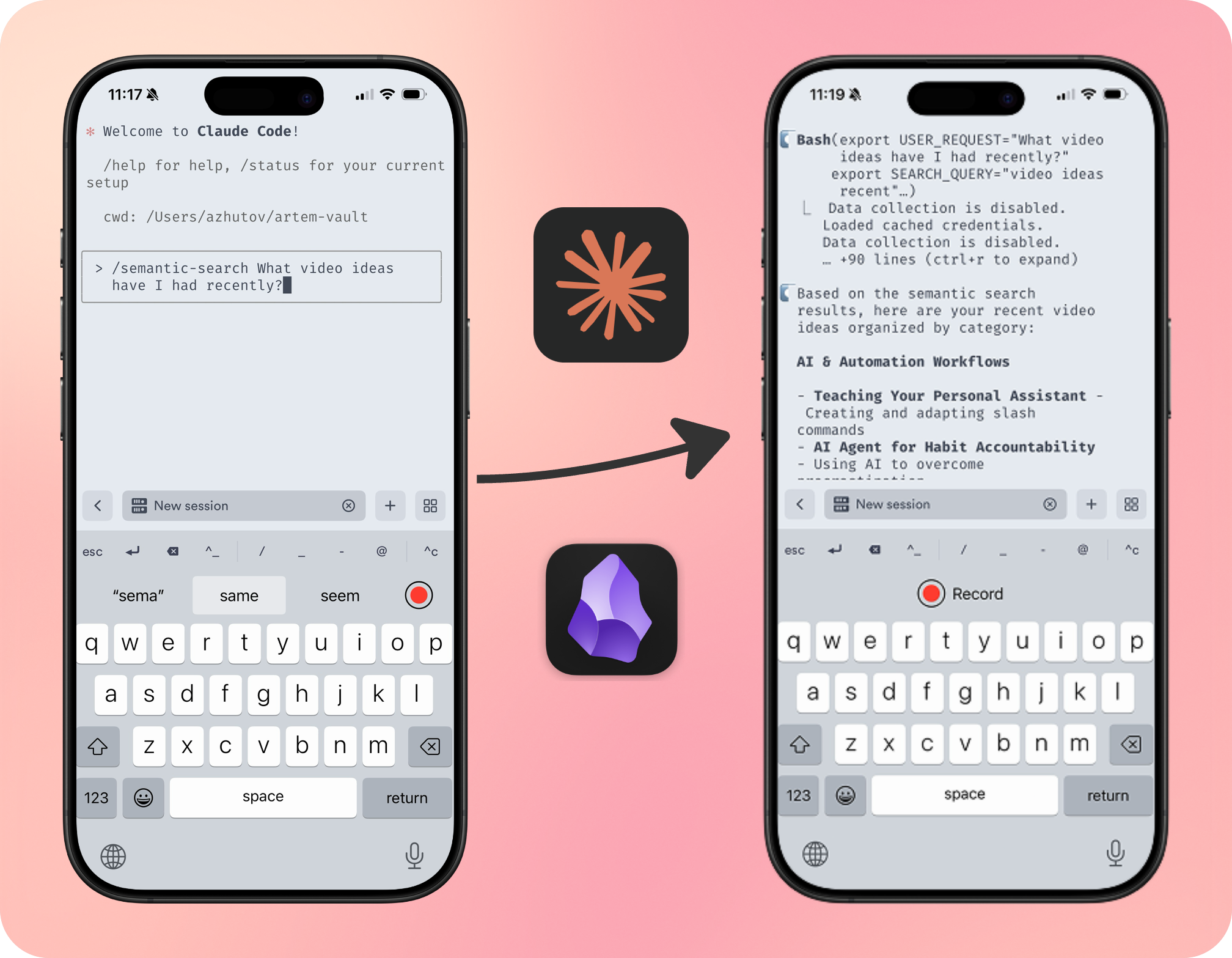
What you’ll get
A voice‑first way to access your Obsidian notes from anywhere
Two core workflows:
/daily-noteand/semantic-searchfor Claude CodeSession continuity via tmux (start on desktop, continue on phone)
Planning mode, file/folder references, and running multiple sessions in parallel!
How it works (at a glance)
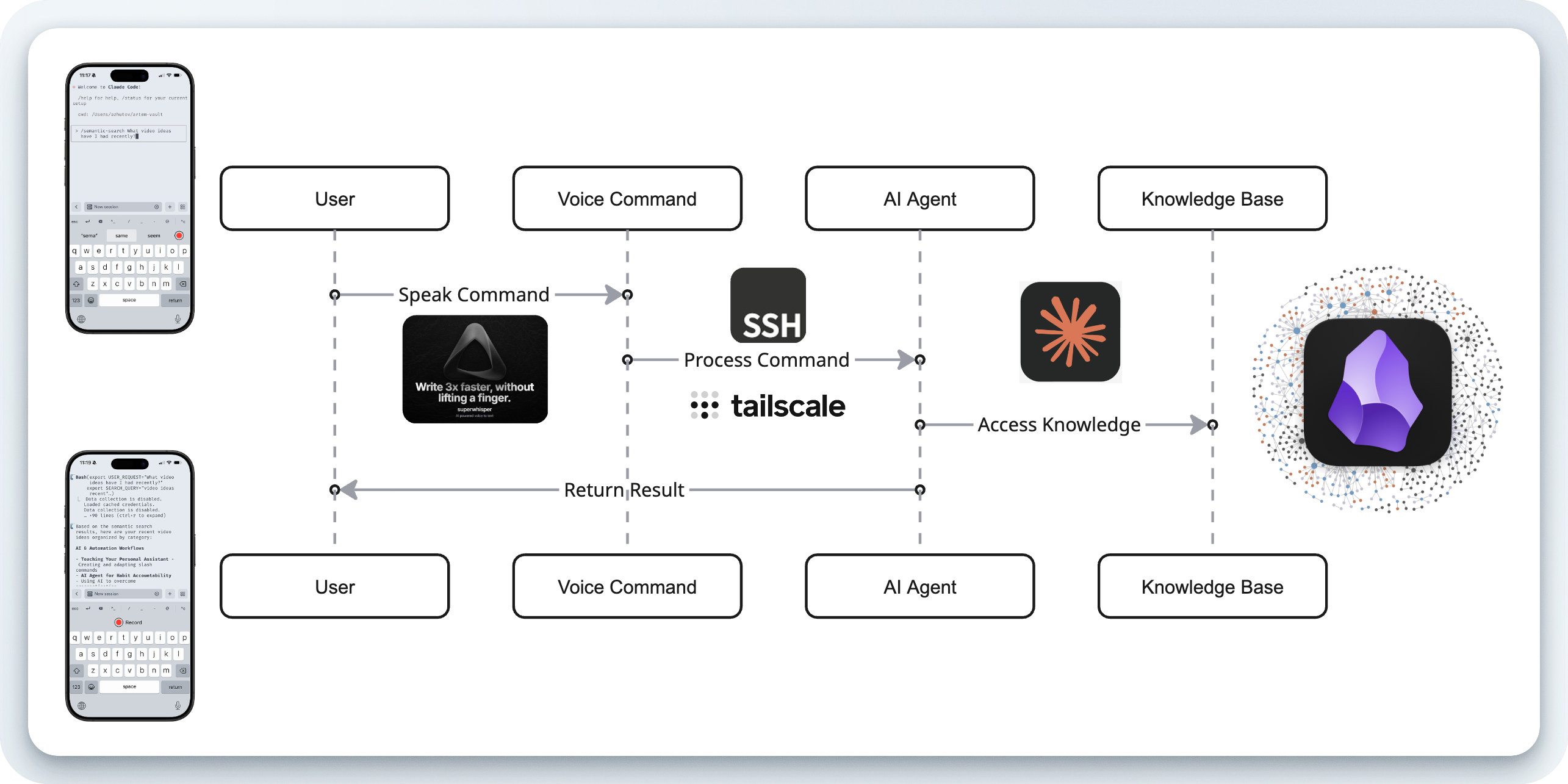
Your phone connects to your desktop privately over Tailscale
On the desktop, a tmux session keeps your Claude Code agent running inside your vault.
From the phone, you SSH in with Termius and dictate via Super Whisper (or Whisperflow). The agent reads and writes to your vault with structure.
Step‑by‑step setup (copy‑paste friendly)
1) Secure connectivity with Tailscale
Install Tailscale on your desktop (download from Tailscale) and phone (iOS or Android). Sign in with the same account on both.
On the desktop, confirm your device and IP:
tailscale status
You’ll use the desktop's Tailscale IP (e.g., 100.121.117.61) as the SSH host on your phone.
Security note: Tailscale creates a private, encrypted tunnel. You are not exposing your desktop to the public internet or opening router ports.
Enable SSH on macOS (System Settings → General → Sharing → Remote Login → On).
2) Keep your agent alive with tmux
On the desktop, start a persistent session and run your agent:
tmux new -A -s claude-mobile 'claude'
Later, reattach from anywhere:
tmux attach -t claude-mobile
3) One‑tap connect from phone with Termius
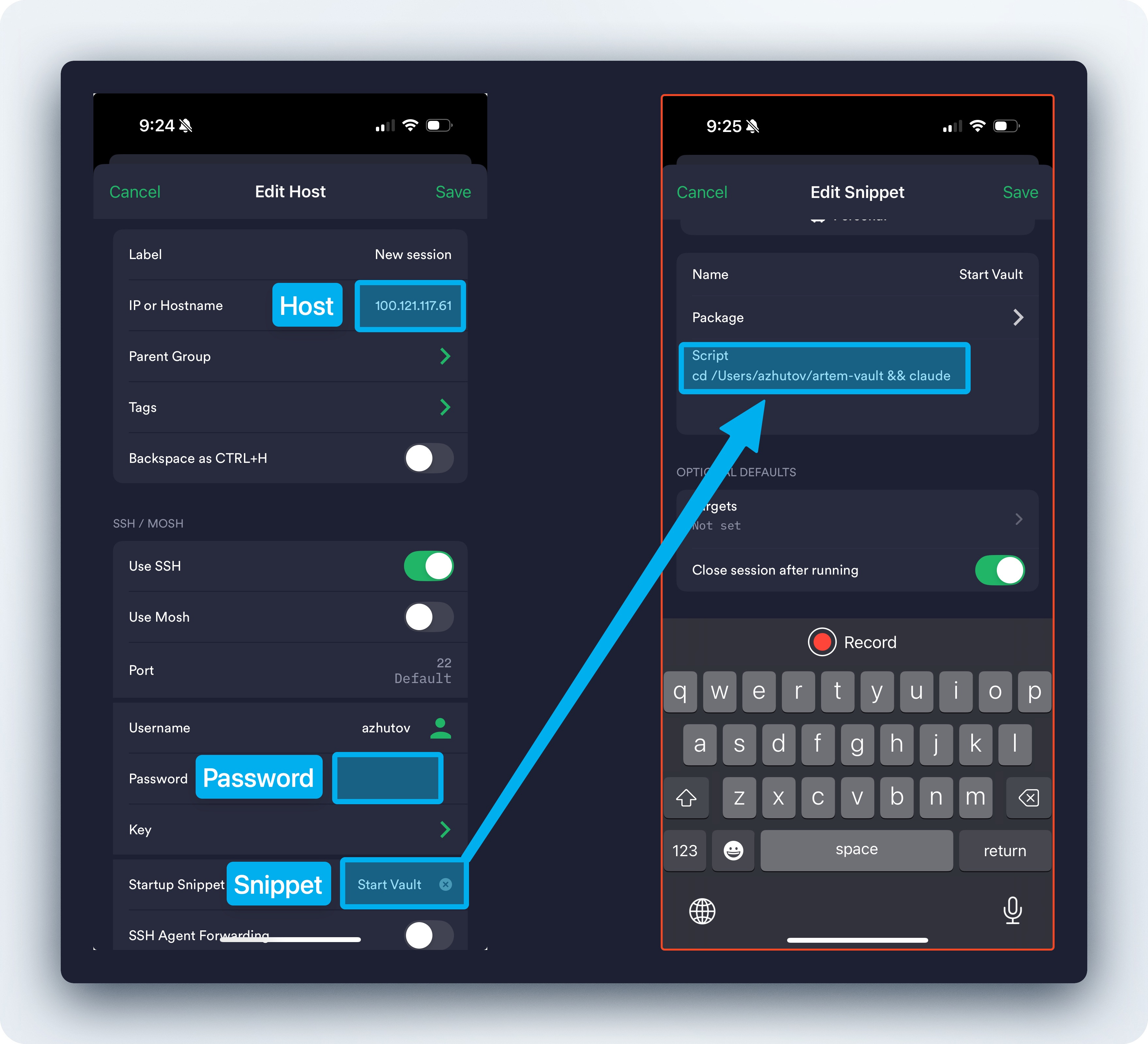
Create a host in Termius:
Host: your desktop's Tailscale IP (e.g., 100.121.117.61)
User: your macOS username
Auth: password (what I use) or SSH key
Optional startup snippet so you land inside your vault and ensure the agent is running:
cd "/Users/YOUR_USER/Obsidian/YOUR_VAULT" && tmux new -A -s claude-mobile 'claude'
4) Voice input on phone
iOS options:
Super Whisper (iOS + macOS): fantastic for long dictations with custom prompts/models. You can also run whisper models locally, on your iPhone. In the roadmap developer is working on synchronization between Mac and iOS.
Whisperflow (iOS): extremely fast for quick captures, however it doesn't handle well long dictations. It starts hallucinating. You don't have control over the prompt, model etc.
Native keyboard (iOS): is not compatible with the terminal input
Android options:
FUTO Voice Input: on-device Whisper with good accuracy. Records in ~30s segments.
The flow – how to use voice keyboard:
Connect in Termius → focus the terminal → switch to your dictation keyboard → record → process → press Enter to send.
5) Planning mode from mobile (optional)
Claude Code planning mode often toggles with Shift+Tab. From mobile, you can send that via a tmux key binding.
In ~/.tmux.conf on your Mac
bind-key p send-keys Escape "[" "Z"
Thanks to this reddit comment for the idea.
Core workflows (what I actually do)
1) Daily note with calendar context
Run:
/daily-note
The agent loads your daily note template, pulls today’s calendar for context, then asks for intention and one goal. Your answers are written back to the vault. Two‑way sync means it’s instantly visible in phone Obsidian.
Here's the custom slash command implementation: gist. Save this as daily-note.md in your .claude/commands/ folder within your vault directory.
2) Ask your vault (semantic search)
Ask real questions rather than hunting filenames. Examples:
/semantic-search what was my focus over the last 3 days?
/semantic-search help me collect context for my project X
You’ll get a short synthesis for you questions, grounded with your notes!
Custom command implementation: gist.
Advanced extras (when needed)
Planning mode: toggle via the tmux mapping to clarify intent before executing
File/folder references: ask the agent to use specific paths for grounded answers
Parallel sessions: open another Termius connection and
tmux new -A -s <name>to juggle multiple tasks. You can swipe left and right to switch open terminal
Final thoughts
This isn’t about making the phone do everything. It’s about keeping momentum when it matters. The desktop stays the place to execute; the phone becomes the place to steer, reflect and plan.
Try asking your vault about patterns in your notes—you'll be surprised what connections emerge. Share what you discover.
Thanks for reading!
I help people do their best work by building personal AI agents—mindfully and transparently. On YouTube, I share real experiments so you can delegate what drains you and amplify the work you love.
Now that Claude Code works on the iPhone app and you can have the vault on iCloud, I wonder if there is a new, easier way of accessing and controlling Obsidian from the iPhone?